
This tutorial focuses on teaching how to make use of the Background plugin for Betterloid, which allows to use custom backgrounds, including animated GIFs on VOCALOID5 and VOCALOID6.
First of all, you will need to install Betterloid itself, which can be found here : VOCALOID - Betterloid - VOCALOID 5 & 6 Unofficial Plugin System
Once set up. Please start Vocaloid at least once and create a track. It will allow Betterloid to create the background plugin's config in your documents folder. If you see a default background on your piano roll, then the background plugin worked as intended.
Next, open your Documents folder and open your "Betterloid" folder.
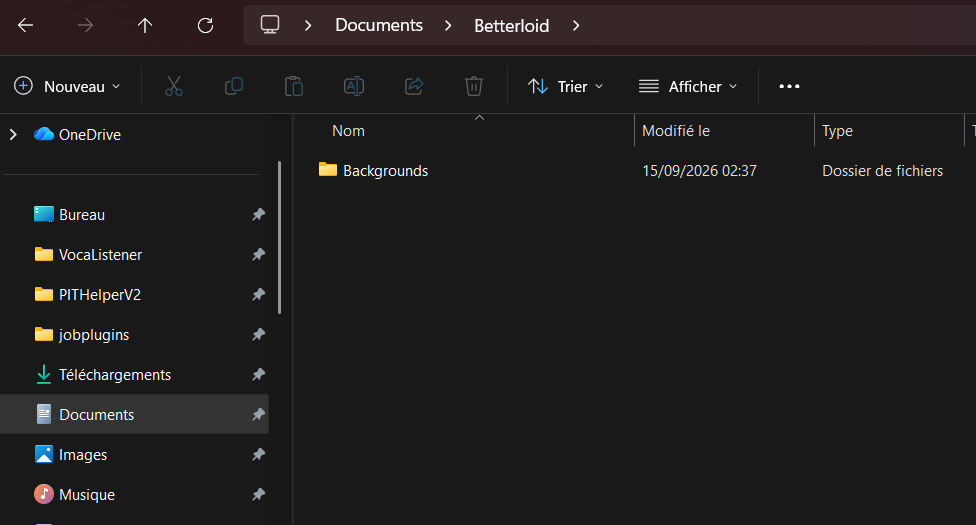
You will find a "Backgrounds" folder. This is the folder that will hold your backgrounds and your background config files.
When you open it, you will find a single config.json file.
This file is, as the name indicates a configuration file for the background plugin. that is where most of the customization is done. By default, the background plugin basically will display the selected voicebank's default illustration stretched to fill the entire piano roll view.
To make any edits, I recommend to edit this file in a dedicated Json editor to prevent making syntax errors. You can edit the json files with web based editors such as
JSON Editor Online: edit JSON, format JSON, query JSON (to load the json, just click "Open" then "Open from disk" and import the json file you want to import.)
Once imported, you should see this :
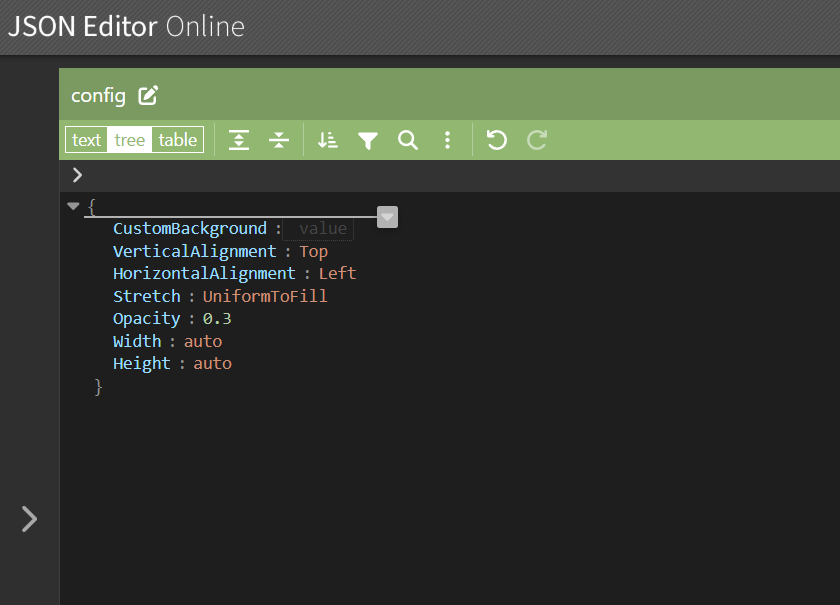
You can edit any parameter by simply double clicking on the value on the right of each parameter.
What each parameter does :
Let's say I want the image to be a cute animated gif of a dancing miku on the right of the editor.
Let's take this gif as an example : Miku Vocaloid Sticker - Miku Vocaloid Hatsune miku - Découvrir et partager des GIF
Let's download it to the Backgrounds folder by right clicking on it and choosing "save image as".
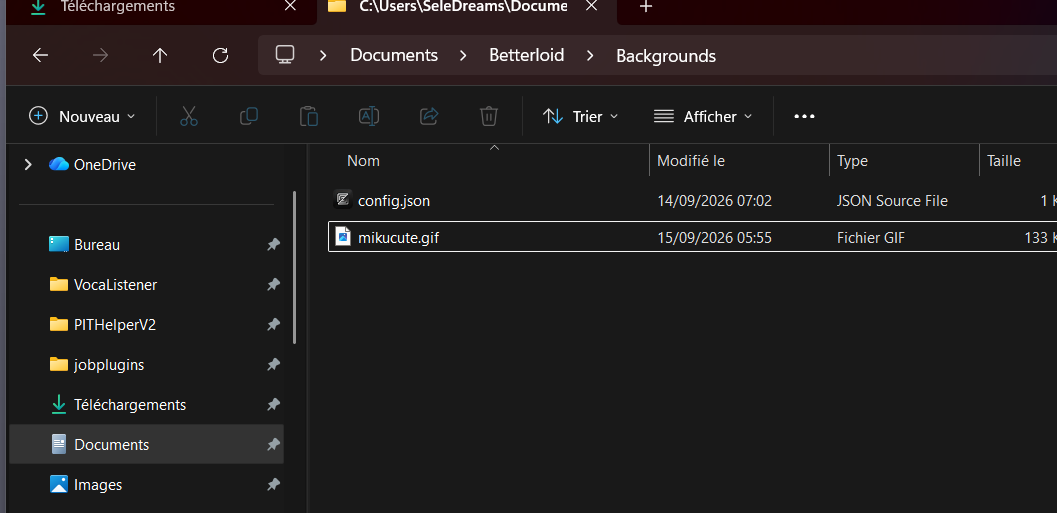
Let's rename it "mikucute.gif". Your Backgrounds folder should look like this :
First, let's ensure Betterloid can open the image in the first place. So first we'll modify config.json to make it load mikucute.gif for all voicebanks. To do so, open the json editor, double click on the right of CustomBackground, then write the name of the file (mikucute.gif) then press enter to validate.
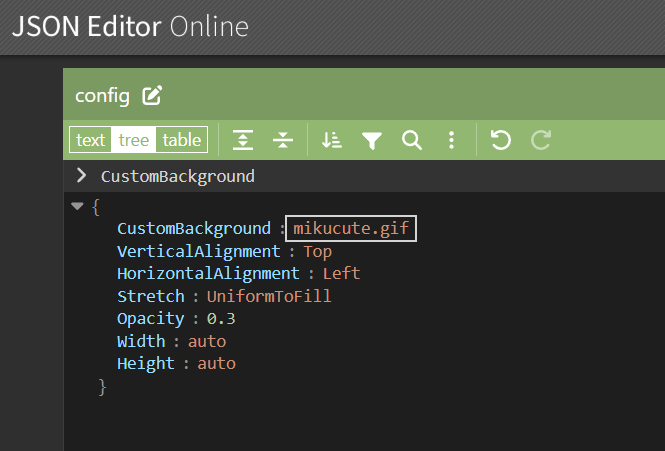
Once the file looks like this, let's just click Save, then Save to disk on the top right.
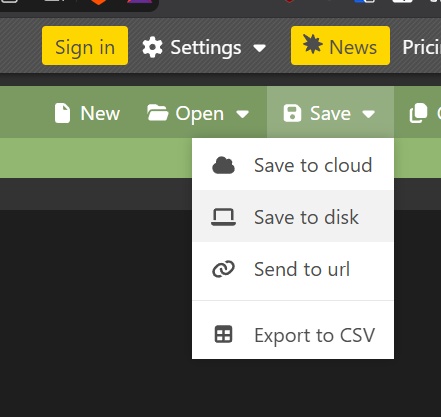
when it asks "enter a name for your document" just keep the name as is and click save. You can then download and overwrite config.json in your Backgrounds folder.
Once overwritten, try opening vocaloid6 (or 5). The result should look like this.
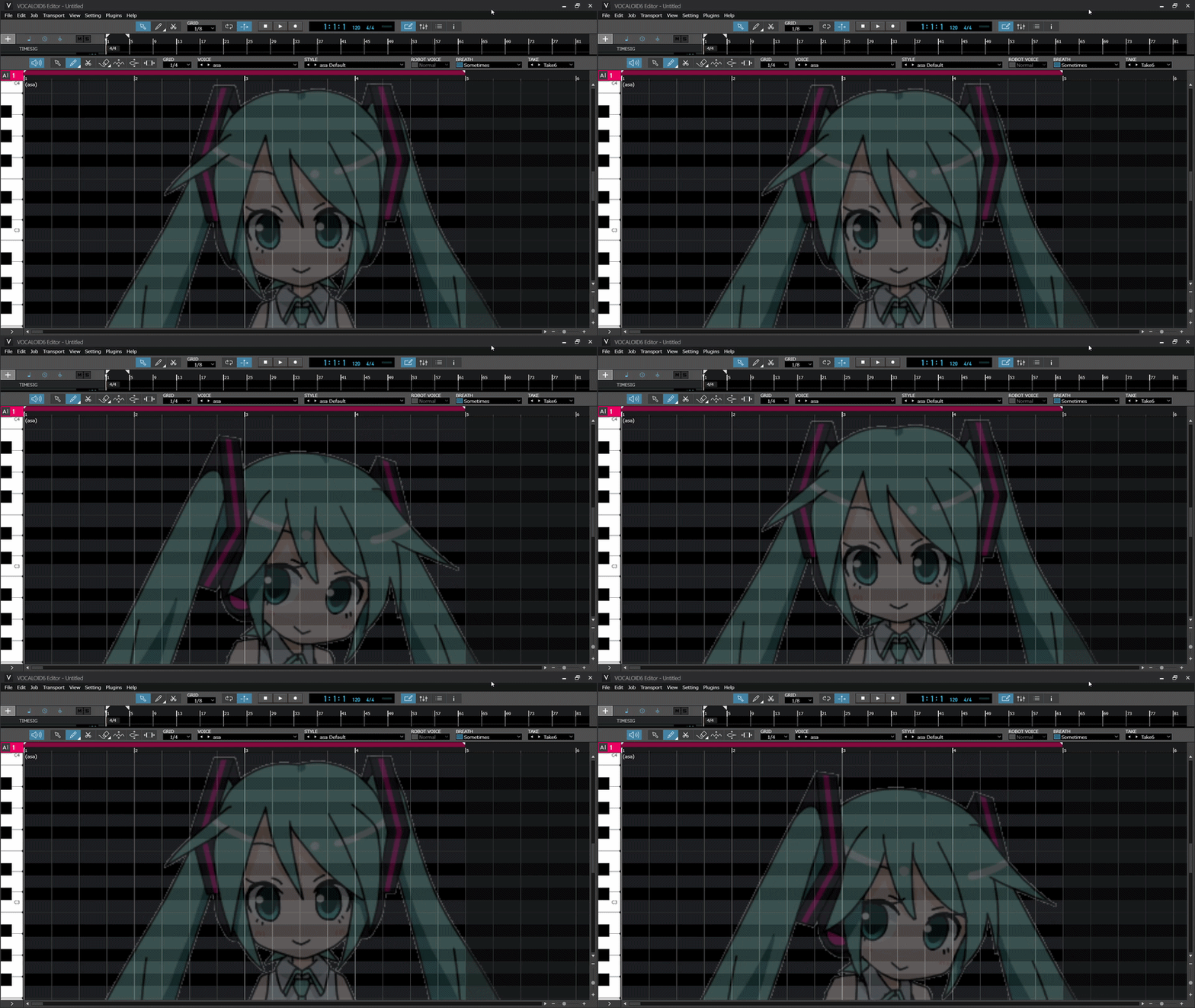
As you can see, right now, Miku is getting cut off. The reason is because right now, what the config file says is :
"display the gif mikucute.gif aligned to the top left of the editor, and stretched while preserving its aspect ratio to the whole editor with opacity 0.3". since it is a vertical image, while making the image bigger, it ends up hiding the bottom half of her body because she's aligned to the top of the editor.
We said we wanted the miku to be at the right of the editor. And we want to show her full body. what to do ?
Well it's fairly simple.
we need to align her to the right, while ensuring she scales depending on the height of the piano roll.
To do that, some values need to be edited.
Let's set VerticalAlignment to "Stretch", HorizontalAlignment to "Right" and Stretch to "Uniform".
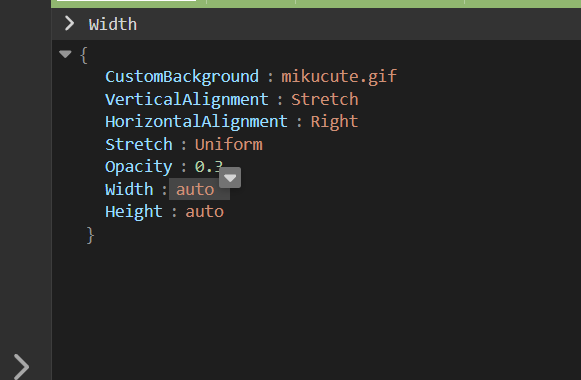
Then save it like before, overwriting config.json.
Now to refresh it, just switch voicebank.
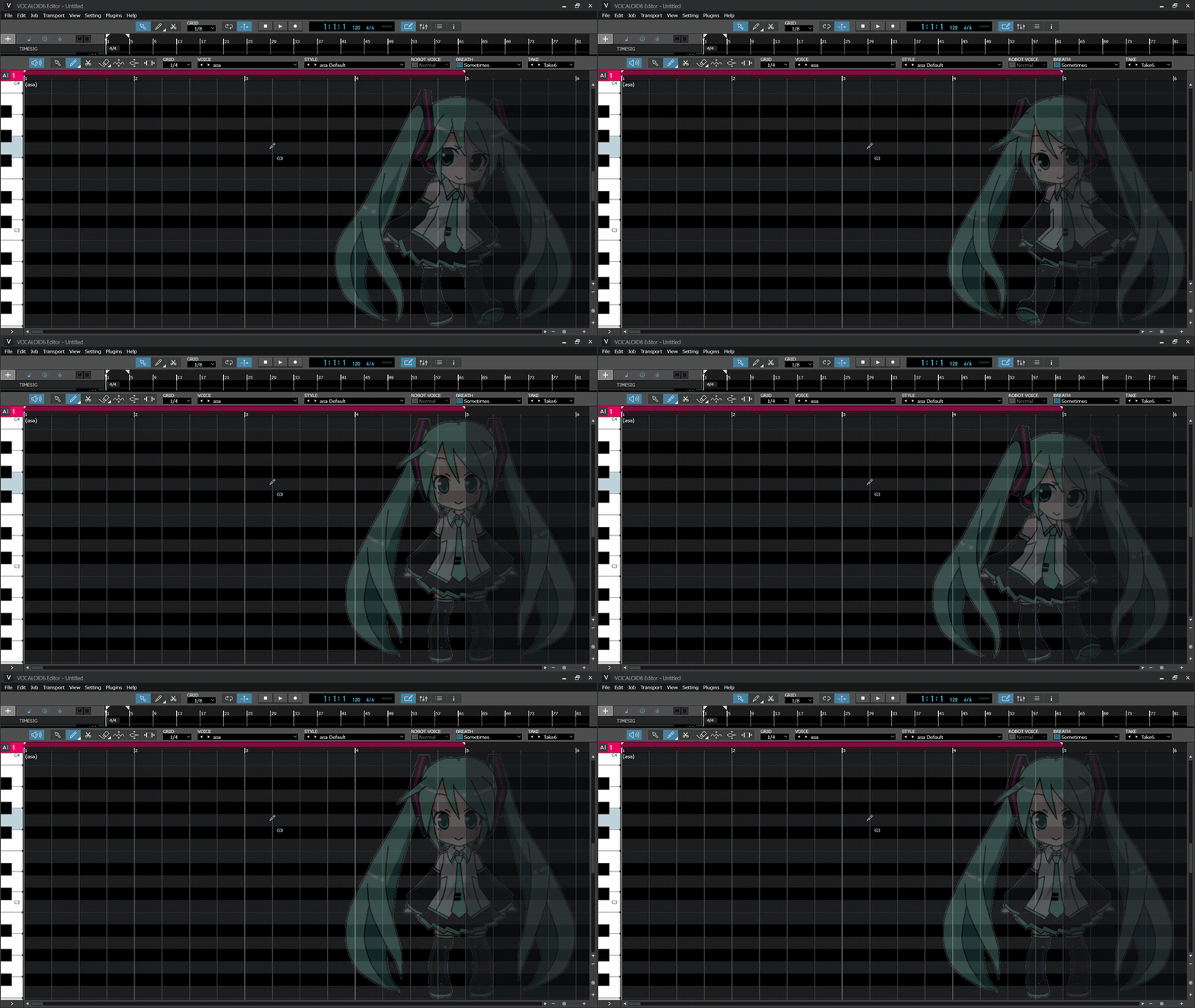
here's the result. Exactly what we wanted.
Though some people might instead prefer to have a small miku on the bottom right corner rather than one scaled up vertically. An option is to set VerticalAlignment to Bottom, and Stretch to None.
For instance
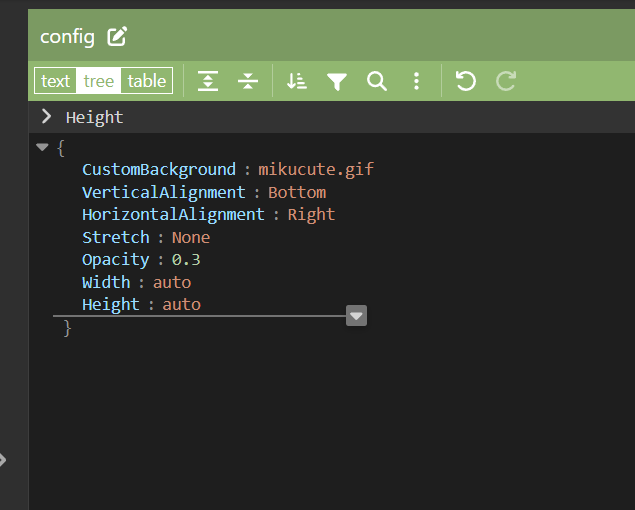
which results in
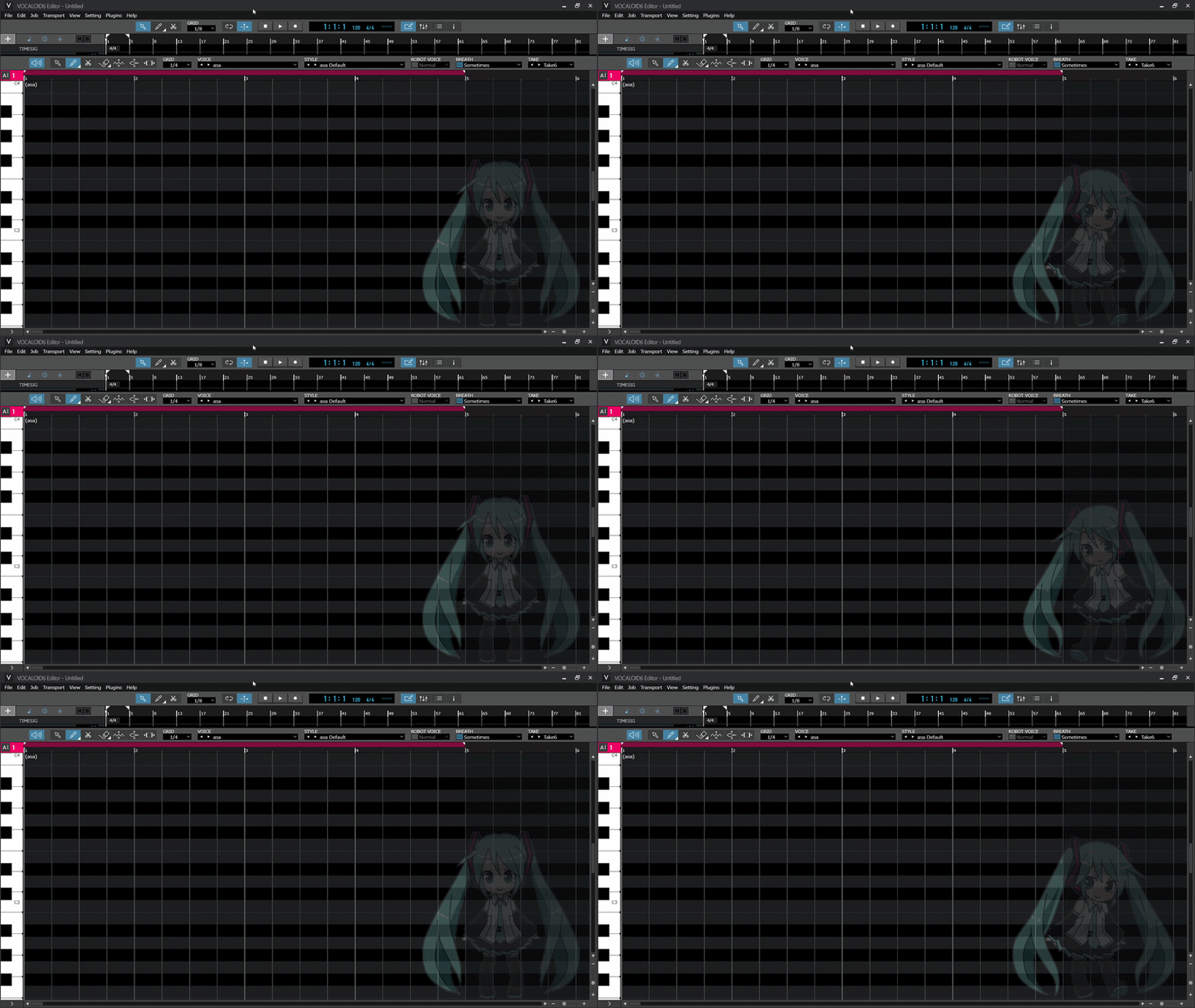
Now you know the basics of how background images work. In most cases if you want a simple full screen background, simply going with the default settings and just changing the image is sufficient. but the background plugin of betterloid is flexible enough to allow specific layouts like shown here.
Now, of course you're going to ask me "How do I get a specific image for a specific voicebank ?
Well that's actually very simple. You see, betterloid's background plugin when a voicebank is loaded try to look for config in two files.
First, it tries to look for a file with the voicebank's name. So let's say the current selected voicebank is Miku V6 Original, then the file it will look for will be named "HATSUNE_MIKU_V6_ORIGINAL.json". If it doesn't find this file, then the plugin will by default load the global one "config.json".
So, if you want only miku v6 to be affected by our config, you just have to rename config.json to "HATSUNE_MIKU_V6_ORIGINAL.json". Don't worry about config.json, betterloid will create a new one when a new voicebank will be loaded. (versions prior to 15-09-2026-r4 might crash if you switch voicebank with a missing config.json, so ensure you're up to date).
To know the exact voicebank name you need to use for your json, you need the name to match exactly the name that appears in the vocaloid editor
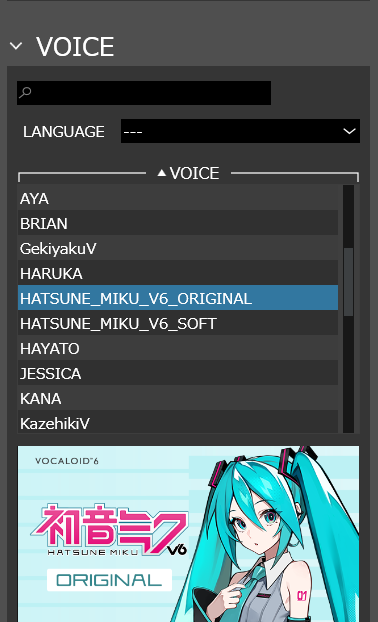
The name should be identical with just .json appended to it (AYA.json, BRIAN.json, GekiyakuV.json, etc...)
Now you know the basics of background configuration. I hope you'll have fun with it !
First of all, you will need to install Betterloid itself, which can be found here : VOCALOID - Betterloid - VOCALOID 5 & 6 Unofficial Plugin System
Once set up. Please start Vocaloid at least once and create a track. It will allow Betterloid to create the background plugin's config in your documents folder. If you see a default background on your piano roll, then the background plugin worked as intended.
Next, open your Documents folder and open your "Betterloid" folder.
You will find a "Backgrounds" folder. This is the folder that will hold your backgrounds and your background config files.
When you open it, you will find a single config.json file.
This file is, as the name indicates a configuration file for the background plugin. that is where most of the customization is done. By default, the background plugin basically will display the selected voicebank's default illustration stretched to fill the entire piano roll view.
To make any edits, I recommend to edit this file in a dedicated Json editor to prevent making syntax errors. You can edit the json files with web based editors such as
JSON Editor Online: edit JSON, format JSON, query JSON (to load the json, just click "Open" then "Open from disk" and import the json file you want to import.)
Once imported, you should see this :
You can edit any parameter by simply double clicking on the value on the right of each parameter.
What each parameter does :
- CustomBackground defines the name of the image file to load. If it is empty, Betterloid will load the default voicebank image. For instance, if you place a file named "MikuDance.png" in the Backgrounds folder, then just set the value of CustomBackground to MikuDance.png and it will load this file.
- VerticalAlignment defines how to align the image vertically. If you set it to "Top" then it will align the top of the image to the top of the piano roll. If you set it to "Bottom" it will align the bottom of the image to the bottom of the piano roll. if you set it to "Center" then it will try to center itself vertically. If you set it to Stretch, it will try to stretch itself vertically (only works if you define the Stretch parameter)
- HorizontalAlignment defines how to align the image vertically. If you set it to "Left" then it will align the left of the image to the left of the piano roll. If you set it to "Right" it will align the bottom of the image to the right of the piano roll. if you set it to "Center" then it will try to center itself horizontally. If you set it to Stretch, it will try to stretch itself horizontally (only works if you define the Stretch parameter)
- Stretch defines how the image stretches itself to the piano roll. If you set it to None, then it will not stretch. If you set it to Uniform, then it will stretch relative to your alignment values while maintaining aspect ratio. If you set it to Fill, it will stretch itself to fill the entire piano roll, ignoring aspect ratio. If you set it to UniformToFill, it will try to cover the whole piano roll while still maintaining its aspect ratio. which means parts of the image may be cut off.
- Opacity defines how opaque the image is. The value must be between 0.0 and 1.0. the higher it is, the more visible the image is. With an opacity of 0, the image is invisible.
- Width defines the width in pixels of the image. if set to auto, the image will automatically scale itself. Currently broken, keep as auto
- Height defines the height in pixels of the image. If set to auto, the image will automatically scale itself. Currently broken, keep as auto
Let's say I want the image to be a cute animated gif of a dancing miku on the right of the editor.
Let's take this gif as an example : Miku Vocaloid Sticker - Miku Vocaloid Hatsune miku - Découvrir et partager des GIF
Let's download it to the Backgrounds folder by right clicking on it and choosing "save image as".
Let's rename it "mikucute.gif". Your Backgrounds folder should look like this :
First, let's ensure Betterloid can open the image in the first place. So first we'll modify config.json to make it load mikucute.gif for all voicebanks. To do so, open the json editor, double click on the right of CustomBackground, then write the name of the file (mikucute.gif) then press enter to validate.
Once the file looks like this, let's just click Save, then Save to disk on the top right.
when it asks "enter a name for your document" just keep the name as is and click save. You can then download and overwrite config.json in your Backgrounds folder.
Once overwritten, try opening vocaloid6 (or 5). The result should look like this.
As you can see, right now, Miku is getting cut off. The reason is because right now, what the config file says is :
"display the gif mikucute.gif aligned to the top left of the editor, and stretched while preserving its aspect ratio to the whole editor with opacity 0.3". since it is a vertical image, while making the image bigger, it ends up hiding the bottom half of her body because she's aligned to the top of the editor.
We said we wanted the miku to be at the right of the editor. And we want to show her full body. what to do ?
Well it's fairly simple.
we need to align her to the right, while ensuring she scales depending on the height of the piano roll.
To do that, some values need to be edited.
Let's set VerticalAlignment to "Stretch", HorizontalAlignment to "Right" and Stretch to "Uniform".
Then save it like before, overwriting config.json.
Now to refresh it, just switch voicebank.
here's the result. Exactly what we wanted.
Though some people might instead prefer to have a small miku on the bottom right corner rather than one scaled up vertically. An option is to set VerticalAlignment to Bottom, and Stretch to None.
For instance
which results in
Now you know the basics of how background images work. In most cases if you want a simple full screen background, simply going with the default settings and just changing the image is sufficient. but the background plugin of betterloid is flexible enough to allow specific layouts like shown here.
Now, of course you're going to ask me "How do I get a specific image for a specific voicebank ?
Well that's actually very simple. You see, betterloid's background plugin when a voicebank is loaded try to look for config in two files.
First, it tries to look for a file with the voicebank's name. So let's say the current selected voicebank is Miku V6 Original, then the file it will look for will be named "HATSUNE_MIKU_V6_ORIGINAL.json". If it doesn't find this file, then the plugin will by default load the global one "config.json".
So, if you want only miku v6 to be affected by our config, you just have to rename config.json to "HATSUNE_MIKU_V6_ORIGINAL.json". Don't worry about config.json, betterloid will create a new one when a new voicebank will be loaded. (versions prior to 15-09-2026-r4 might crash if you switch voicebank with a missing config.json, so ensure you're up to date).
To know the exact voicebank name you need to use for your json, you need the name to match exactly the name that appears in the vocaloid editor
The name should be identical with just .json appended to it (AYA.json, BRIAN.json, GekiyakuV.json, etc...)
Now you know the basics of background configuration. I hope you'll have fun with it !
